What is Nature Journal
Have you ever been outside and seen something that caught your eye? Do you wish you could draw like the scenes on postcards? Nature journaling is taking time to observe and record what you see using pictures, numbers, and words. You could sketch the view of the waterfall you hiked to or track the squirrels you see eating from your bird feeder. Maybe you want to draw your backyard every month of the year.
How to Nature Journal
There is no right or wrong way to write a nature journal. Find a spot, observe, and record. I recommend recording at least the date and location of your sketch. Location doesn’t have to be GPS coordinates; it could be the trail you’re on, a local park, or as simple as my backyard. Some people even add details like the time and weather. Many people just start sketching without recording any details.
What Supplies do I need?
You only need paper and a pencil to start nature journaling. As long as you have something to write with and something to write on you are good to go. I like to use a small sketchbook and a pencil in the field. If I have space in my backpack I may bring some markers or colored pencils just for fun.
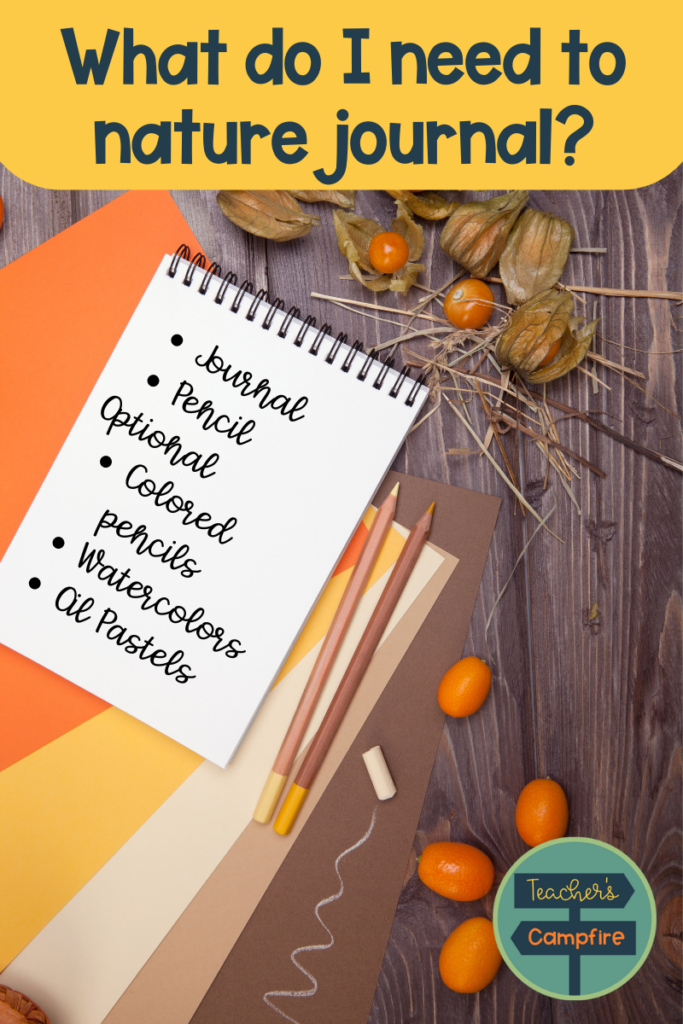
Some people bring other art supplies to add color and texture to their sketches. You may want markers, colored pencils, oil pastels, or watercolor paints. My preference is to sketch with a pencil in the field and then add color later when I’m home. Sometimes I will even take a picture on my phone of what I drew to reference as I color.
Nature Journaling Ideas
- Flowers or trees
- Landscapes
- Seasons – sketch the same place in each season
- Animals
- Weather – clouds can be really neat
- Anything that catches your eye – that cool leaf on the ground or a trickle of water coming down the hillside
Why you should use Nature Journaling for Kids in the Classroom
You may be thinking this sounds like a cool weekend activity but why should I nature journal with my students? Let me give you a few reasons I believe nature journaling is valuable. First, nature journaling exposes children to nature and being outdoors. There is lots of research that says being outside in nature is good for our mental health. I’ve noticed many students aren’t comfortable sitting on the grass or just being outside when it isn’t recess time.
Second, nature journaling helps develop kids’ curiosity and observation skills. Many students may finish quickly when they first start their nature journals, but as they continue their curiosity will grow and they’ll notice more things. Thinking “there’s a tree” may become a study of what kind of tree or how old the tree is. Or seeing a squirrel may turn into tracking the squirrel’s movement.
How to Teach Nature Journaling
The most important thing about nature journaling is just to draw something.
It doesn’t have to be perfect – it just has to document your thinking. John Muir Laws offers 3 prompts to help students when nature journaling:” I notice”, “I wonder”, and “It reminds me of.” Here is how I like to start my first nature journal lesson.
Step 1 – Gather Supplies
The essentials are a piece of paper and a pencil. (Take clipboards or something to write on.) If you want journals that you can use throughout the year I suggest a sketchbook because it doesn’t have lines and the pages are thicker if you decide to add markers or paints. When we got out I have my students carry their supplies and bring them back.
Step 2 – Prepare your Students
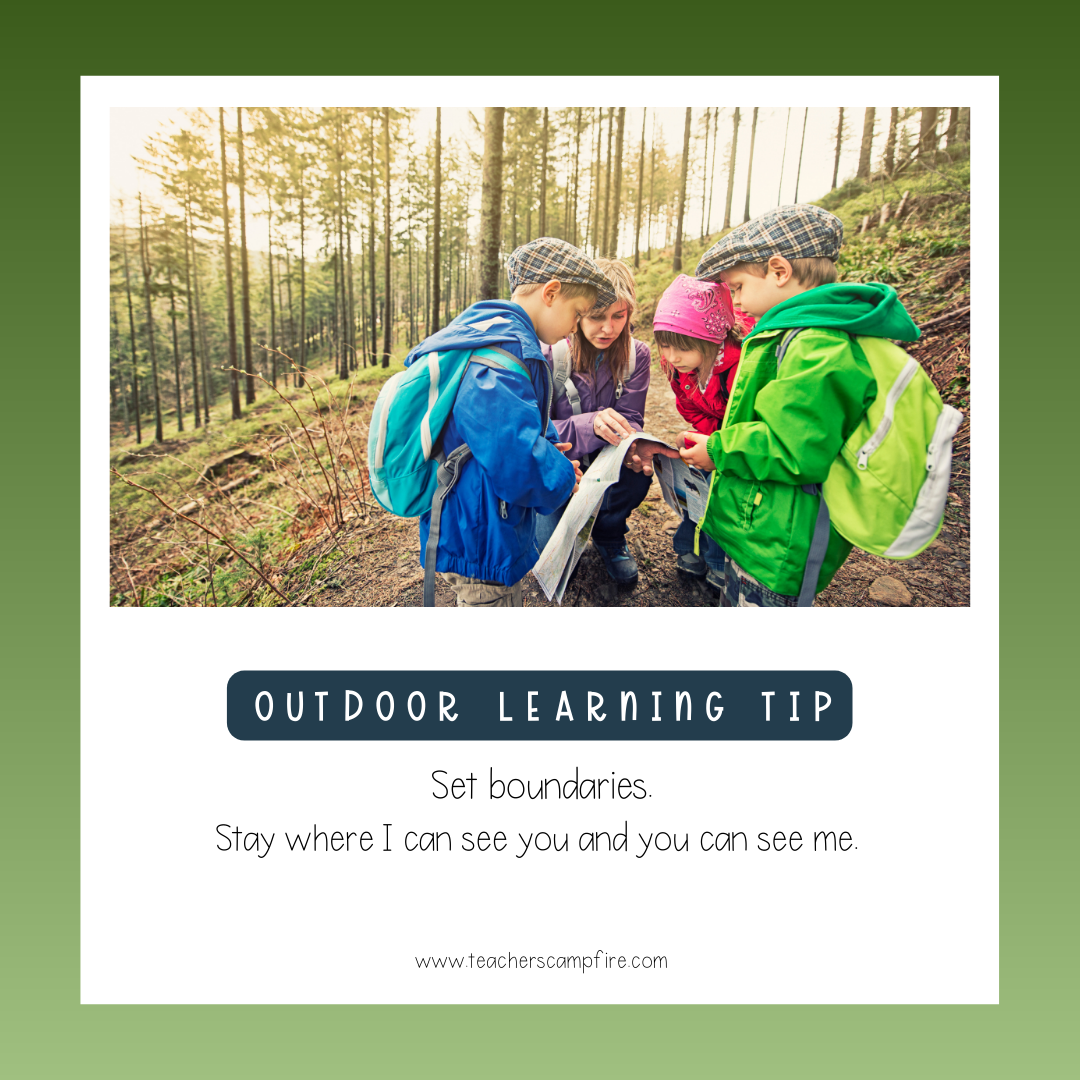
Set expectations before you go outside! This way you have students’ attention and can answer questions before everyone spreads out. My rules are simple. Stay where I can see you and you can see me – if you look back and don’t see me you’re too far and need to come back. I will choose spots for students who wander too far. No talking during journal time. This is so that we can use our sense of hearing to experience the sounds around us. (Hint: Give students time afterward to share if they would like so they don’t have to share while they are sketching.)
Give students a template and the guiding questions before going into the field. You may sketch this on the board and have students copy it in the front of their journals so that always have it to reference. I like students to include the date in the top right corner. I also have students include words and drawings – their choice of how they use both.
Step 3 – Go Nature Journaling
Lead students to the spot where you will be journaling. Quickly review the expectations and then let them begin. Be sure to bring your journal and sketch along with your students. This is great modeling and even if you aren’t the best artist your students will be curious about what you’re sketching and observing.
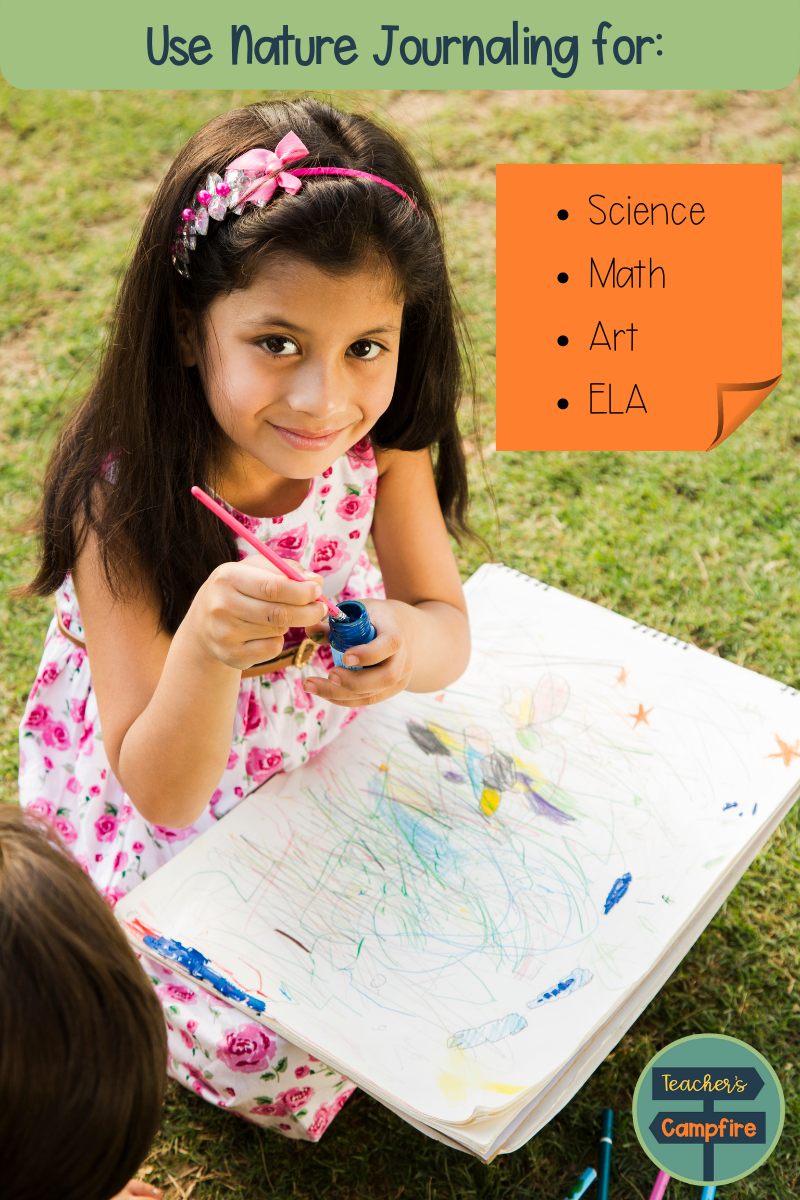
Nature Journaling Prompts for any Subject
Science
- Weather – especially changes in seasons. Return to the same spot in each season and watch how nature changes. Sketch the clouds.
- Animals – Kids love animals and there are so many things you can sketch. Use your sketches to identify the animals you see using field guides. Classify the animals you see. Label animal structures and how those structures help the animal survive.
- Plants – Classify and identify plants. Label plant structures.
- Landforms – Have students sketch a landscape and then label the different landforms they see.
Art
- Perspective – Practice drawing something from different angles.
- Depth – Use foreground, middle ground, and background when sketching.
- Colors – Study the colors you see in nature.
ELA
- Sketch and then write a poem to describe what you saw.
- Practice labels and non-fiction text features.
- How-to writing – describe how to draw something
Math
- Counting – trees, clouds, animals, etc.
- Find patterns – look for the Fibonacci sequence
- Population studies