Keeping devices organized and charged is a challenge in any classroom. There aren’t enough plugs or students don’t know how to put them away. Gaining control of the devices in your classroom and teaching students how to help you take care of the devices will make your classroom run smoother and help you love using technology instead of dreading the set-up and clean-up required. Here are my top 5 tips for how to use technology in the classroom.
Create a System
The first key to managing classroom devices is to create systems and procedures for how you will use them. This includes getting devices out, using them, cleaning, and putting them away. The more detailed you can make these the easier you will be able to teach them to kids.
Remember to consider all possibilities for how your class will use devices. Will you use them in small groups or centers? Whole class? Will devices be an early finisher option? Knowing how you will use technology in the classroom will help you create the systems and procedures for students.
Think about where your cart or charging station will be in your classroom. Make sure there are enough outlets or that you have a power strip. Consider placing your cart away from high traffic areas since putting away devices and plugging them in typically takes some time – you don’t want a traffic jam waiting for students to plug in their devices.
Assign Devices to Students
If you have 1:1 devices this is really simple. Grab a class list and assign a device to each student. For multiple classes, you can make a list per class period. That way each device is assigned to a student in each period. For shared devices, you can assign each device to pairs or groups of students or you may want the flexibility for anyone to use any device.
Most schools will have a number already on the device when they tag them for inventory. I use the tag number when making my list. (If you are using a long number like a barcode try using the last 3-4 digits.) You can also assign by the slot number in your cart. Once you assign devices make sure the list is posted on or near your cart that way students don’t have to ask whenever they forget which device is theirs.
Post Visuals
As silly as it seems, take pictures of what your devices should look like. Take a picture of your cart with the devices plugged in correctly and charging. Take a picture of what it looks like when students have a device at their desks. Pictures help jog student’s memory and are a great tool for younger learners who may not be able to read directions yet. Pictures are also great for a quick refresh when the routines have gotten sloppy and forgotten.
Once you’ve taken the pictures label the important parts – such as where the charger plugs in and how to know it’s charging or carrying your device with two hands. Labels help draw student’s attention to details that may be forgotten or overlooked.
Make Technology a Class Job
If students use technology in the classroom then they should take on part of the responsibility for caring for the devices. This is a great way to start teaching responsibility to younger students and to help students understand the value (both monetary and for learning) of your classroom devices.
Choose 1-2 responsible students to be in charge of your classroom devices. These students can help hand out devices and put them away. They can also double-check to make sure all devices are plugged in and charging at the end of class.
You can also have students who are experts on the websites or apps you use in class. These students can assist classmates who may be stuck. Make sure they know where to find login information since this is probably the number one reason students get stuck on their devices.
Model and Practice
The key to successfully use technology in the classroom is practice, practice, practice! If you only use devices once a month or once a quarter students will forget what to do every time. Think of technology as one of the classroom procedures you teach at the beginning of the year. When you teach students to line up for the hallway, you practice over and over again until it’s ingrained in them. Here are some technology procedures you will want to model and practice.
Getting Out Devices
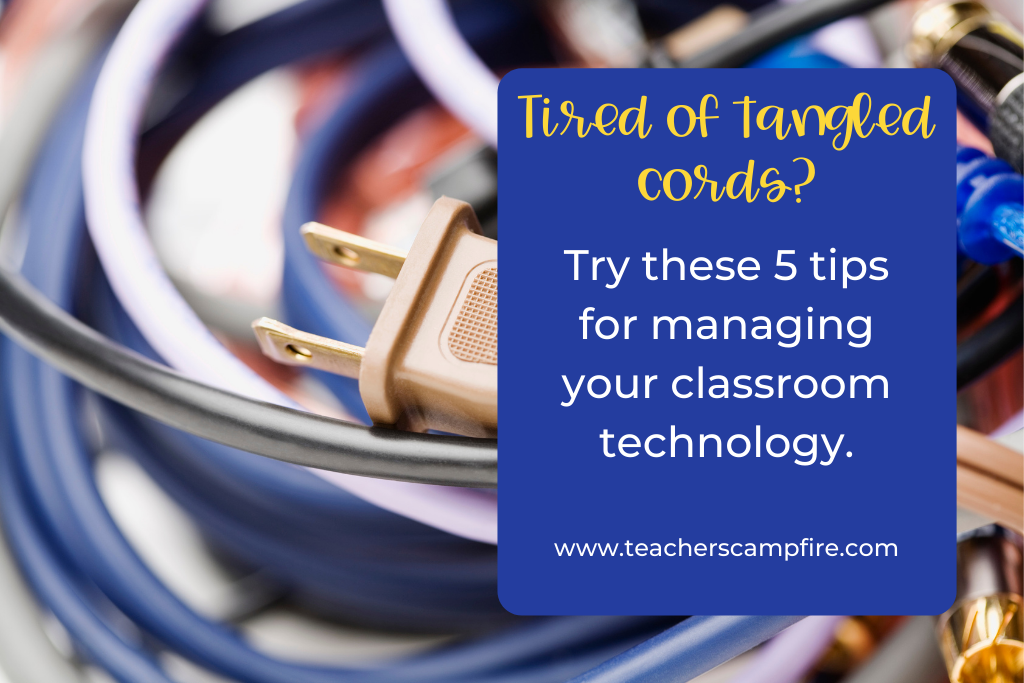
Students need to know how to get their devices. I teach my students how to get our Chromebooks out of the cart and carry them to their desks. Even my kindergarteners carry their Chromebooks after the first couple of weeks. It saves me so much time for students to get their own devices than for me to hand them out.
First, show students where the cart is and how to open it. Then, tell students which device they will be getting. My class always had a number they put on their papers for me to easily alphabetize assignments so we used those same numbers for our Chromebook cart. Show students how to unplug the device and remove it from the cart. Then, model how to carry the device to their desks. I always remind students that devices should be carried with two hands.
After you have explained and modeled the procedure go ahead and let students get their devices. Stand by the cart so you can show each student where their device is in the cart and you can clarify any directions as needed. This will take a while the first few times and that’s ok. Plan for an extra 5-10 minutes to get out devices the first week or two. We want students to practice correctly now so that in a month they can do it quickly and without our help.
Logging In
Logging in is one of the hardest things to teach students because they have to be accurate and precise. I make login cards for my students each year that are bookmarks. Students keep it in their pencil pouch or I taped it to their desks. I also always keep a folder or binder with the class login lists to lookup log-in information when someone forgets. I keep this login information with my teacher binder because I don’t want students looking for other’s usernames or passwords. When students ask for their login, I like to write it on a sticky note so they can then stick that somewhere safe like a planner or notebook.
Once students have their username and password, make sure they know that it has to be typed exactly like it’s written. I always take this opportunity to make sure students know how to make capital letters (shift key not caps lock) and where to find common symbols (@, -, ., etc.). Again, this will take extra time for a while until students learn where all the characters are on the keyboard. Resist the temptation to sign everyone in because you can type faster. Typing is an essential skill for today’s students and usernames and passwords are a great way to practice.
If you have primary students who are still learning their letters, I highly recommend using Clever to log in. Clever is a single sign-on platform that is free for schools and you can connect many commonly used websites so students log in once to Clever and then Clever automatically logs them into the connected sites. My favorite feature is the badges. Clever creates QR code badges that students can scan to log in – these works for Chromebook login too! These badges are magical for kindergarten students. It does take some technical setup to use the badges for Chromebook sign-in. Talk to your IT department and see if they will set it up for you.
Putting Devices Away
Remember to teach students how to sign out of the website and the device so that the next user won’t see their stuff. Cleaning up is very similar to getting out devices. Model how you would like students to put away their devices and then stand by the cart to help students as needed and ensure they put their devices in the correct spot. I like to have students just put the devices in and then my tech helpers will go back through and plug them all in. This saves time because students aren’t hunting the chord and it’s just easier to plug them in once every device is put away.
This is also the time to make sure students know where to keep their login cards or login information. Giving them a safe and consistent place is key. I make my littles turn them into me and I keep them in a basket on top of the Chromebook cart. For my older elementary students, I like to use login cards as a way to teach responsibility so I show students how to keep their cards in their pencil pouch. The first couple of weeks I remind students to put them away and then it becomes the student’s responsibility.